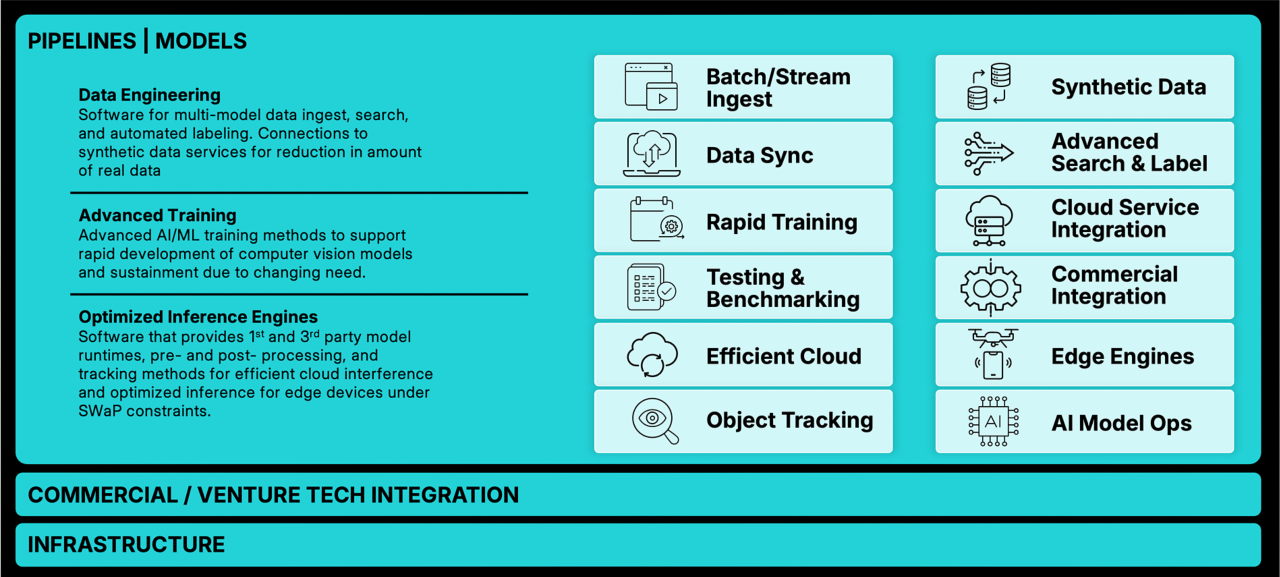
Hi, I'm Britanya Wright-Smith, technical lead of the Vision AI team's Vision Assistant. The Vision Assistant is an AI-powered tool that couples human expertise with leading-edge computer vision models to analyze images and videos faster than ever. No AI model is perfect. That's why we've coupled our cutting-edge AI with the mission expert to create a powerful team. The Vision Assistant is available as part of our Vision AI platform, and built upon open source, industry-proven, enhanced for our clients' missions.
It solves the primary problem many users face when extracting information from visual data. They have a large amount of video or imagery and a need to accurately find, label, highlight, or measure objects that there's just not enough time in the days, weeks, or even months to process it all. This is where the Vision Assistant comes in. Users of the Vision Assistant start by uploading their data to the Vision AI platform. Various data types can be uploaded - including, but is not limited to videos, images, image batches, or even satellite images. In this stage, the user also defines their labels. It can comprise of anything from a rectangle or bounding box to a polygon, or even to a skeleton. By default, it is defined as any. Once completed, the user can directly go into the Vision Assistant and start their annotation process.
The user is navigated to the job window where they have the ability to view their data. In this stage, the user gets to choose a frame or image to start annotating. On this frame or image, they're able to use the labels they created to define an object of interest. They can define this object manually or with the help of AI. The AI model types that can be used include, but are not limited to, tracker models, object detection models, and object segmentation models. Let's walk through a few examples using the Vision Assistant to annotate objects within a video with AI assistance. This user wants to segment a vehicle of interest in this frame of the video. They do this by navigating to the AI Tools icon. Under the Interactors tab, the user chooses the appropriate label and AI model of choice. After clicking Interact, they are prompted to place down points where the object is.
Once completed, the AI model predicts a segmentation mask or polygon of that object. This can be done for multiple objects in the same frame, But it doesn't just stop there. The user can also make modifications to the AI predictions to refine their results. This user modifies the segmentation results by placing a point on an area of the vehicle that needed to be added to the mask or polygon. In addition, the user can remove parts of the segmentation by placing a negative point signifying areas that do not include the object. If the user wants to detect all cars in this frame or image, for example, they do this by navigating to the AI tools icon. Under the Detectors tab, the user chooses the appropriate label and AI model of choice. After clicking Detect, the model returns its best prediction on all cars within the current frame or image.
While AI tools can be used on individual frames, the vision Assistant takes this further by incorporating AI tracking, further accelerating the annotation process. A user can do this by navigating to the AI Tools icon and choose the appropriate model of choice under the Tracker tab. This model will track all annotated objects in the video. The user clicks Track to start the prediction process. Once the model has made tracking predictions, the user is able to navigate frame by frame to see the results. The Vision Assistant can track objects throughout a video in many ways.
These objects can be defined as bounding boxes, masks, polygons, or even skeletons comprised of many key points. After viewing the results and making modifications, users are able to export these results in multiple formats for other post-processing needs. Imagine doing in minutes what used to take hours. We've helped clients speed up their annotation process tenfold. With the Vision Assistant, you have fast AI-assisted annotating right at your fingertips, making your imagery workflow smoother and more efficient.